· mcp · claude · chatgpt · ai video
Order videos from ChatGPT or Claude: how to connect Swarmm over MCP
How to connect ChatGPT, Claude, or a coding tool to Swarmm using MCP. Brief videos from your own AI assistant, review fixed-price plans, and stay in control.
If your business uses an AI assistant like Claude or ChatGPT every day, that assistant already knows what you have told it or given it. It has your notes, what you sell, who your customers are, and the copy you are working on.
When you need a short video for your website or social channels, you usually have to start over somewhere else. You write a brief from scratch, explain your product again to another person or a new tool, and wait on revisions.
Swarmm runs an MCP server that lets you connect the AI you already work in directly to Swarmm's video makers. Once connected, your assistant can talk with Swarmm, plan a video using what it already knows about your business, and show you the plan to approve before anything starts.
What connecting your AI lets you do
Once Swarmm is connected:
- You stay in the tool you already use, whether that is Claude on your desktop, ChatGPT on the web, or Claude Code in your terminal.
- Your assistant prepares the brief for Swarmm using your existing files, project notes, and company background without you having to retype them.
- You see the plan, with one fixed price per video, before any money changes hands.
- The finished video arrives in your Swarmm drive, where you can watch it, download it, or order another.
How to connect your assistant
To connect an AI app, sign in to your Swarmm account and visit Connect your AI. You can also find it under your account menu in the navigation bar.
The page gives you the server address (https://swarmm.app/mcp) and step-by-step instructions for each supported app.
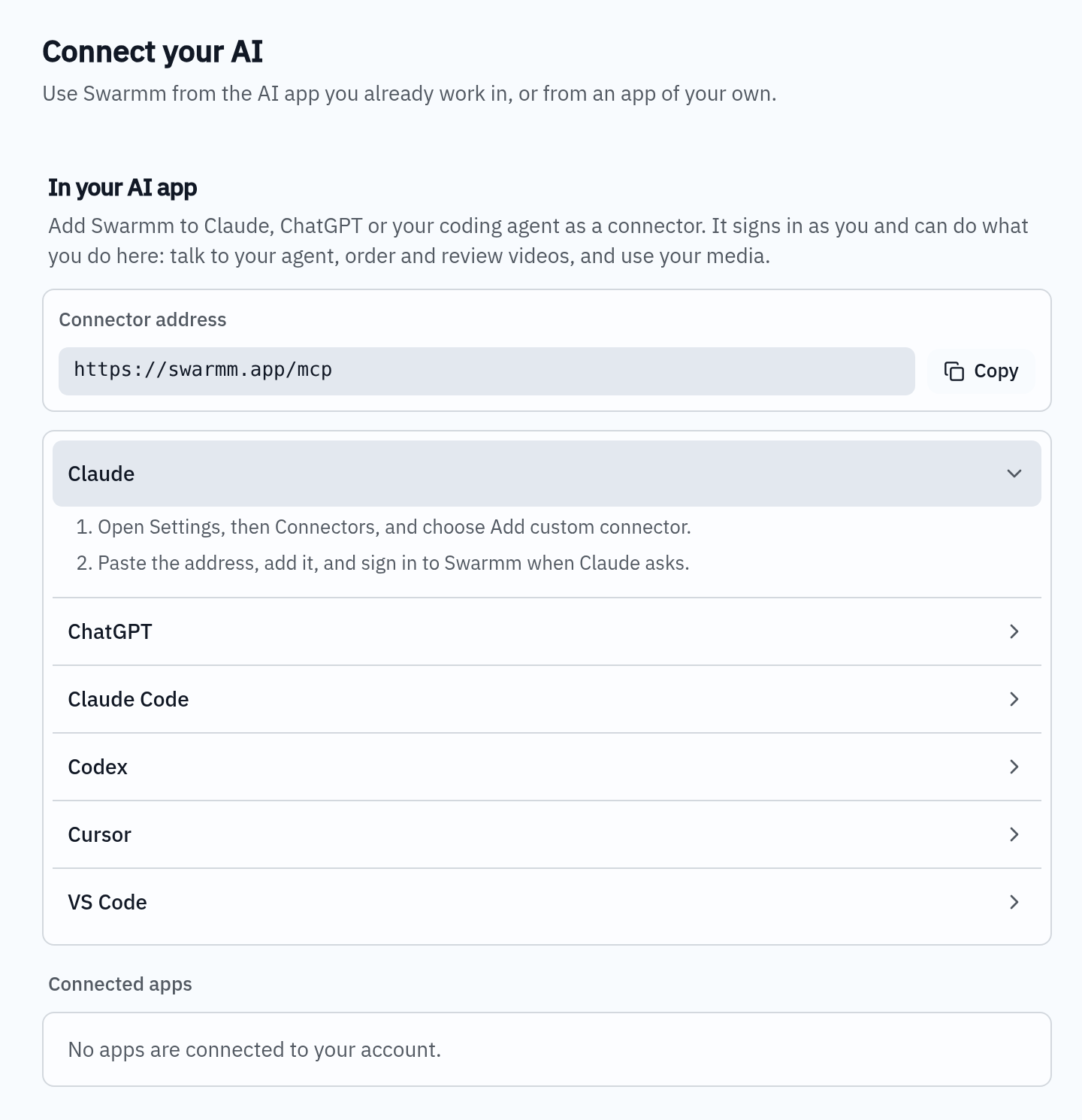
Claude
- Open Claude's Settings, select Connectors, and choose Add custom connector.
- Enter the address
https://swarmm.app/mcp, save it, and sign in to your Swarmm account when Claude prompts you.
ChatGPT
- Open ChatGPT's Settings, select Apps, and turn on developer mode under Advanced settings.
- Create an app with the address
https://swarmm.app/mcp, select OAuth, and sign in to Swarmm when asked.
Coding tools (Claude Code, Codex, Cursor, VS Code)
If you work in a code editor or terminal, you can connect Swarmm as a server:
- Claude Code: Run
claude mcp add --transport http swarmm https://swarmm.app/mcp, then type/mcpin Claude Code to sign in. - Codex: Run
codex mcp add swarmm --url https://swarmm.app/mcp, thencodex mcp login swarmm. - Cursor: In Settings under MCP, or in
.cursor/mcp.json, add Swarmm with URLhttps://swarmm.app/mcp. - VS Code: Add Swarmm to
.vscode/mcp.jsonas an HTTP server pointing athttps://swarmm.app/mcp, or runMCP: Add Server.
What happens after you connect
Once connected, your AI assistant can browse Swarmm's video catalogue and work with Swarmm's planning agent.
Here is the flow from prompt to finished video:
- Describe what you want in your chat, or ask your assistant to turn a recent update or article into a video. It can fill in your audience, language and key points from what you have already told it.
- Swarmm proposes a plan naming the video type, how many videos, the language, where it will be posted, which files it uses, a title, and the fixed price. Your assistant displays this plan in your chat.
- Once you accept the plan, work begins immediately and payment is deducted from your Swarmm credit balance. If your credits are low, your assistant provides a direct link to top up.
- Swarmm makes the video and deposits the file in your drive. Your assistant can check the progress and share the link as soon as it is ready.
Staying in control of spending
You decide how much authority your connected AI has over your account. When you connect an app, Swarmm displays a consent screen where you pick one of three spending policies:
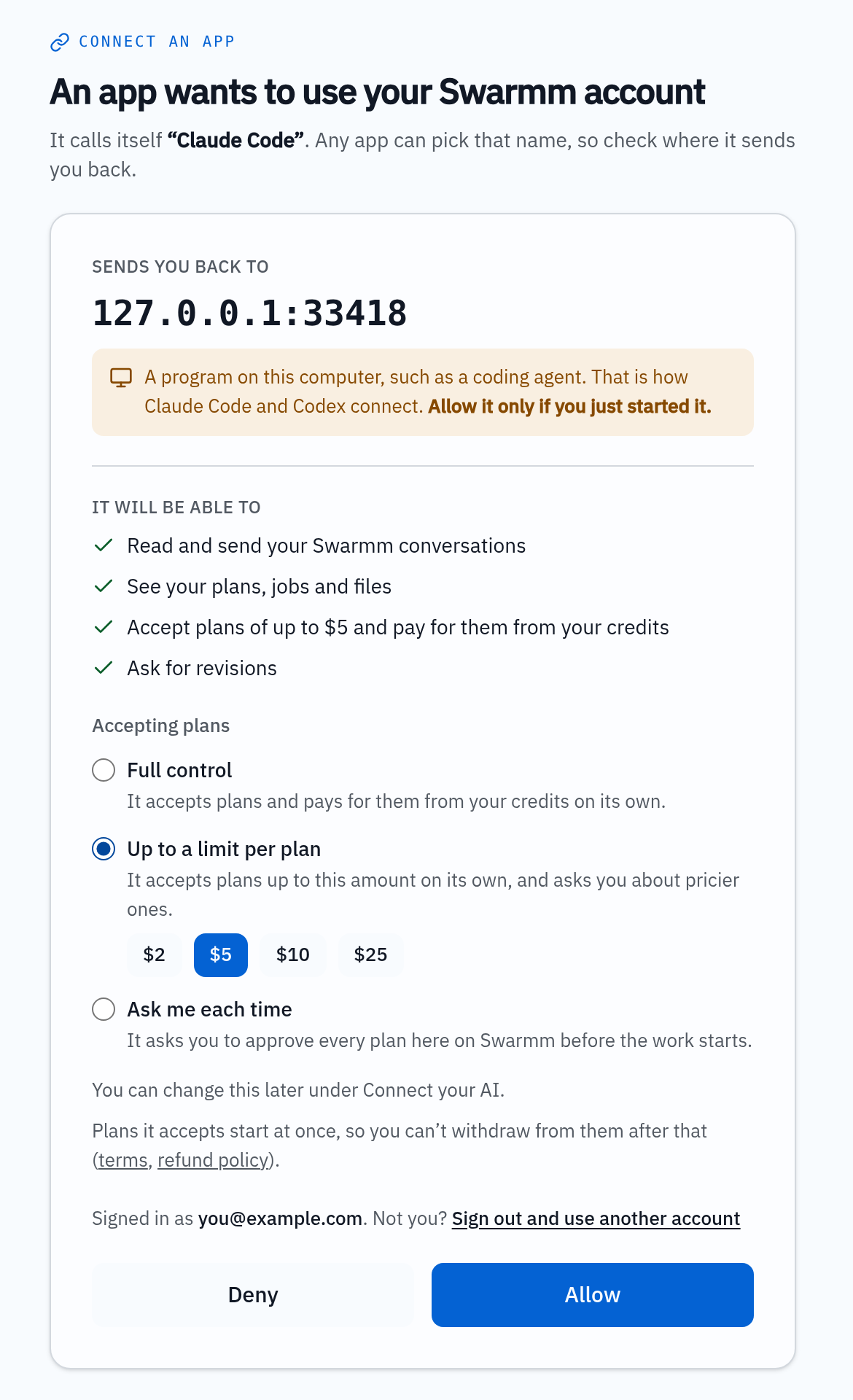
The page starts on Full control. You can pick a limit per plan or choose Ask me each time before you allow the connection, and you can change your choice later under Connect your AI:
- Full control: Your assistant can accept any proposed plan and pay for it directly from your available credits without asking you first.
- Up to a limit per plan: Your assistant can accept plans automatically, but only if the video price is at or below the amount you pick ($2, $5, $10, or $25). A plan above that limit needs your approval on Swarmm.
- Ask me each time: Your assistant cannot purchase or start any plan on its own. Whenever it proposes a video, it gives you a link back to Swarmm where you review the plan and click to accept it.
You can update this policy or disconnect the app at any time by returning to Connect your AI. Disconnecting an app means its sign-in stops working and what you allowed it is forgotten.
Next steps
Visit Connect your AI to link your assistant, or browse the examples to see the formats Swarmm can create for your business.